Receiving Topics#
This guide walks through configuring your host machine’s network interface to discover topics broadcast by the robot over DDS.
1. Prerequisites#
Before proceeding, ensure you have ROS 2 installed and properly sourced on your host machine.
# Example for ROS 2 Humble (adjust for your distribution)
source /opt/ros/humble/setup.bash
2. Network Configuration#
The robot’s onboard system uses a fixed static IP address:
Robot IP:
192.168.123.3Subnet:
192.168.123.0/24(Subnet Mask:255.255.255.0)
To communicate with the robot, your host machine must have a static IP assigned on the same 192.168.123.x subnet. The address can be anything in that range other than .3 (which is reserved for the robot itself).
Network Architecture#
+------------------------------------+          Ethernet Cable          +------------------------------------+
|          Host Workstation          | <==============================> |          Robot Controller          |
|                                    |                                  |                                    |
|  Static IP:    192.168.123.10      |           Subnet Mask:           |  Static IP:    192.168.123.3       |
|  Subnet Mask:  255.255.255.0       |          255.255.255.0           |  Subnet Mask:  255.255.255.0       |
|                                    |                                  |                                    |
|  Middleware:   Cyclone DDS         |     DDS Multicast & Discovery    |  Middleware:   Cyclone DDS         |
|  Role:         Client / Listener   | <------------------------------> |  Role:         Publisher / Server  |
+------------------------------------+                                  +------------------------------------+
Setting Up the Wired Profile#
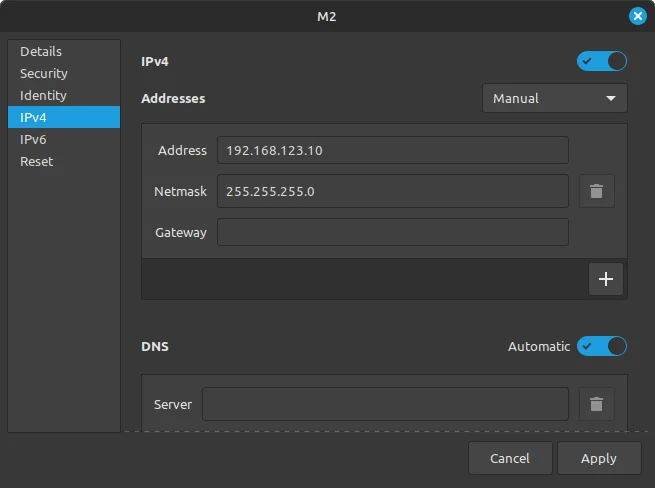
Navigate to your system settings > Network > Wired > Click the settings cog or New profile button.
Configure your Ethernet network interface with the following parameters:
Setting |
Value |
|---|---|
IPv4 Method |
Manual |
IP Address |
|
Netmask |
|
Gateway |
Leave blank |
Svan M2 Network Architecture#
3. Physical Connection#
Connect an Ethernet cable directly from your laptop’s Ethernet port to the robot’s network port.
Verify basic network reachability by pinging the robot:
ping 192.168.123.3
Ensure packets are returning with low latency (< 1ms).
4. Discovering Topics#
Once the physical and network connections are active, check that topics are visible over the DDS domain:
ros2 topic list
Alternatively, if you have Cyclone DDS tools available from Step 3 of Controlling the Robot:
cyclonedds ls
Warning
Cannot echo topics yet!
At this stage, you will only see topic names listed in the discovery output. You cannot ros2 topic echo <topic> yet because message type definitions and IDL packages have not been compiled and sourced on the host.
To proceed:
Complete Part B: Topic Setup & Message Definitions below, or
Move directly to the next article: Visualising Data.
Part B: Topic Setup & Message Definitions#
To echo and inspect incoming topics, the custom ROS 2 message definitions and IDL specifications must be built locally from the Svan M2 SDK.
1. Clone the Svan M2 SDK Repository#
Clone the SDK repository into your home directory:
cd ~
git clone https://github.com/SlyPredator/m2_sdk.git
2. Create an Isolated Colcon Workspace#
Create and enter a dedicated colcon workspace:
mkdir -p ~/m2_ws
cd ~/m2_ws
3. Source the Base ROS 2 Installation#
Source your ROS 2 environment (adjust distribution name if using a version other than Humble):
source /opt/ros/humble/setup.bash
4. Build the SDK#
Build the SDK packages using --base-paths to point to the cloned repository and enable ROS 2 and example targets:
colcon build \
  --base-paths ~/m2_sdk \
  --cmake-args -DBUILD_ROS2=ON -DBUILD_EXAMPLES=ON
5. Source the Built Workspace & Echo Topics#
Once the build finishes successfully, source the workspace overlay:
source ~/m2_ws/install/setup.bash
Now you can deserialize and inspect live topics in real time:
# Example: Echoing joint state telemetry
ros2 topic echo <topic name>